3. Connect your device to Scout
Once communication with Scout is enabled, connect your device to a Scout project. The easiest way is to use the setup wizard.
Use the setup wizard
In the Scout section of the device's web server or the MyConfig app, click Connect to Scout to start the setup wizard.
Most devices can be added to Scout by following the steps below. Some devices require specific steps. Check whether your device requires specific steps here before continuing."
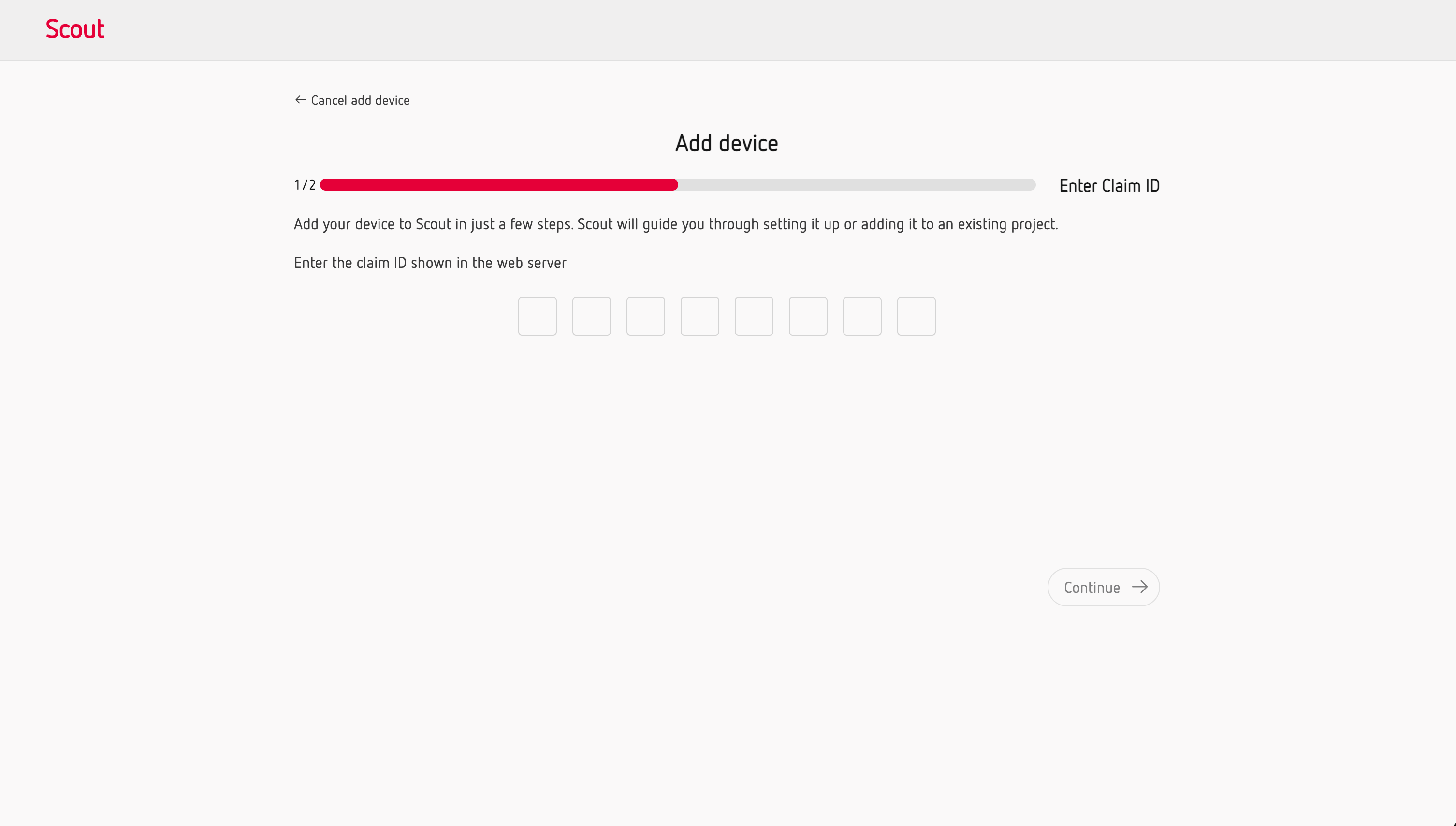
The wizard guides you through the connection process. If you are new to Scout, you can create your account during the process.
Once the process is complete, your device will be connected to Scout and will start sending data.
Multi-channel devices
If your device is multi-channel, the setup wizard will connect it to Scout as a gateway. You then need to add the channels you want to monitor to your project.
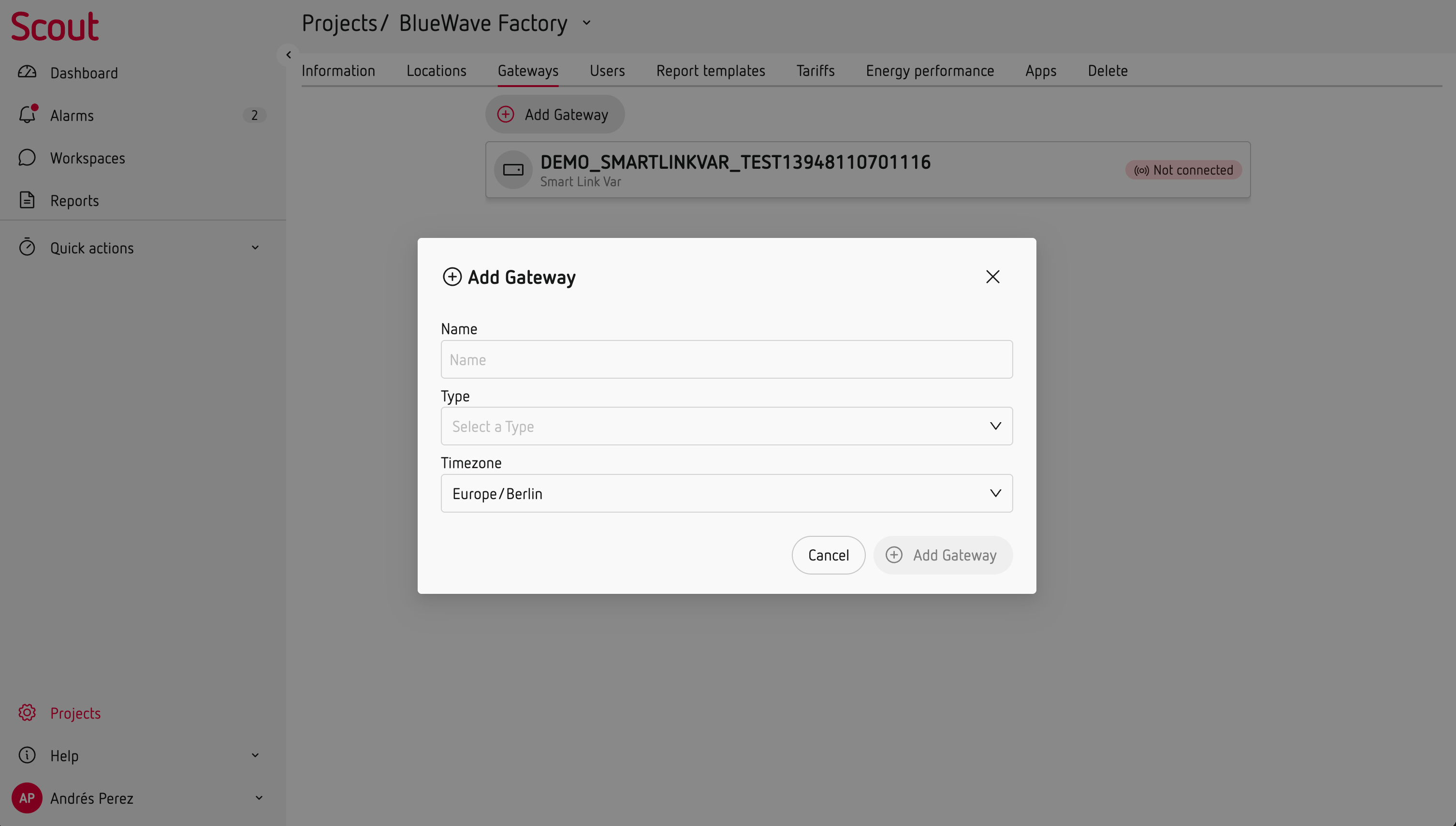
Scout treats each channel as a separate device.
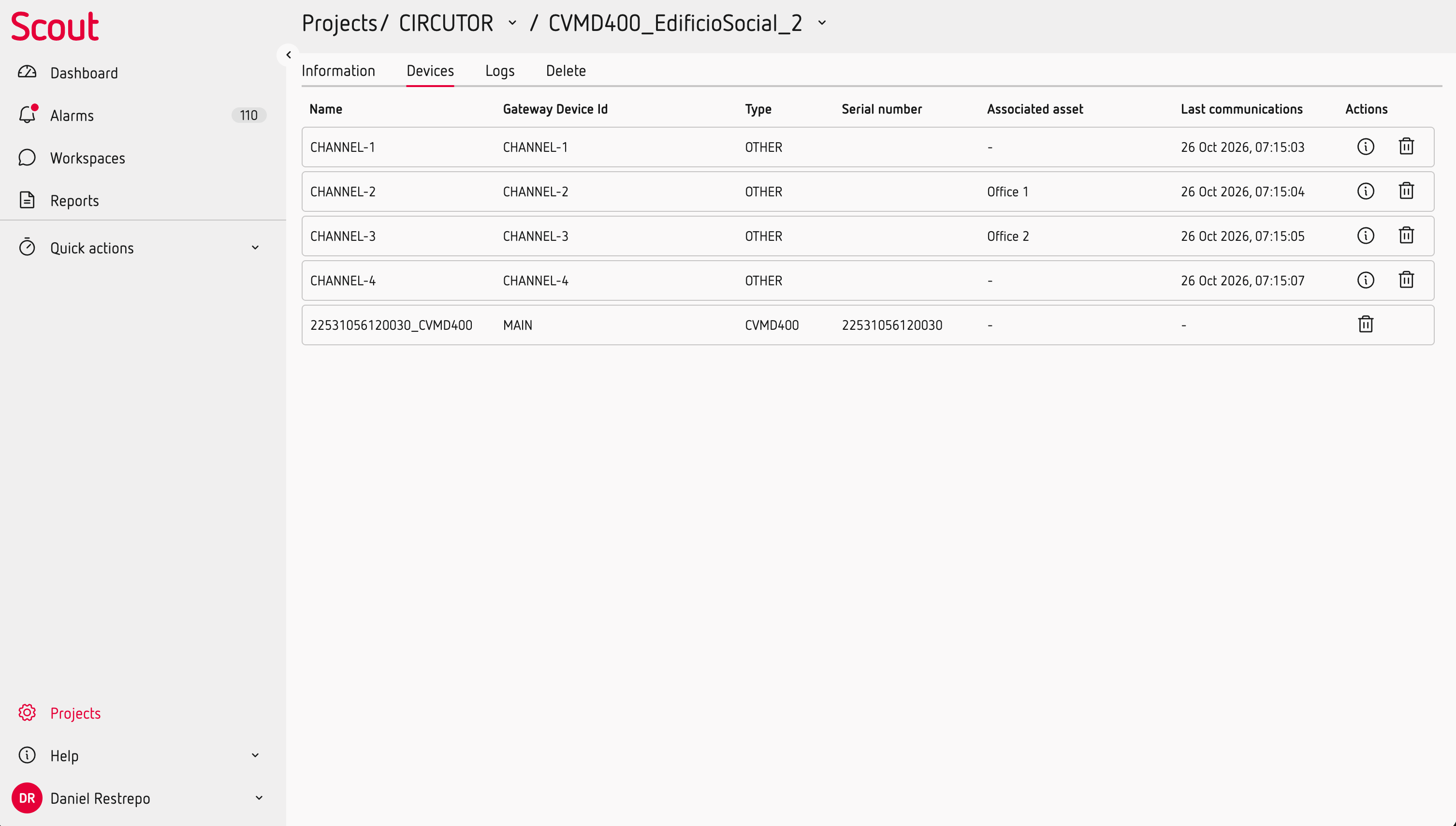
To add a specific channel, go to the Hierarchy tab of your location, change the option to Add by ID and select the channel from the available devices dropdown list.
Note
You can add channels to different locations.
Manual connection
If you don't want to use the setup wizard, you can connect your device manually from your Scout project.
Create the Asset where you want to use the device
Go to the Hierarchy tab of the corresponding Location and create the Asset where you want the device's data to be available. You can organise Assets on different levels to reflect your installation.
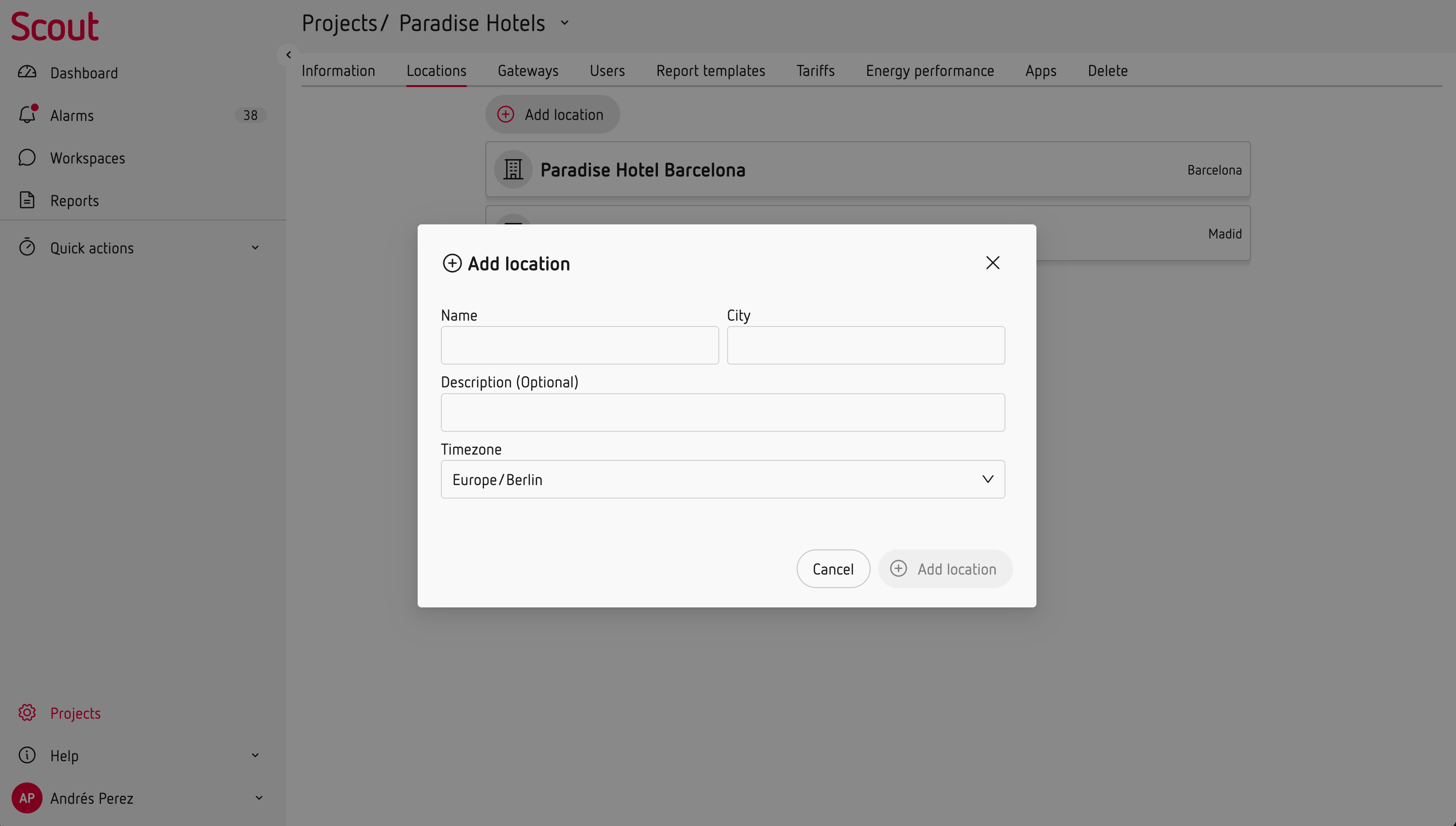
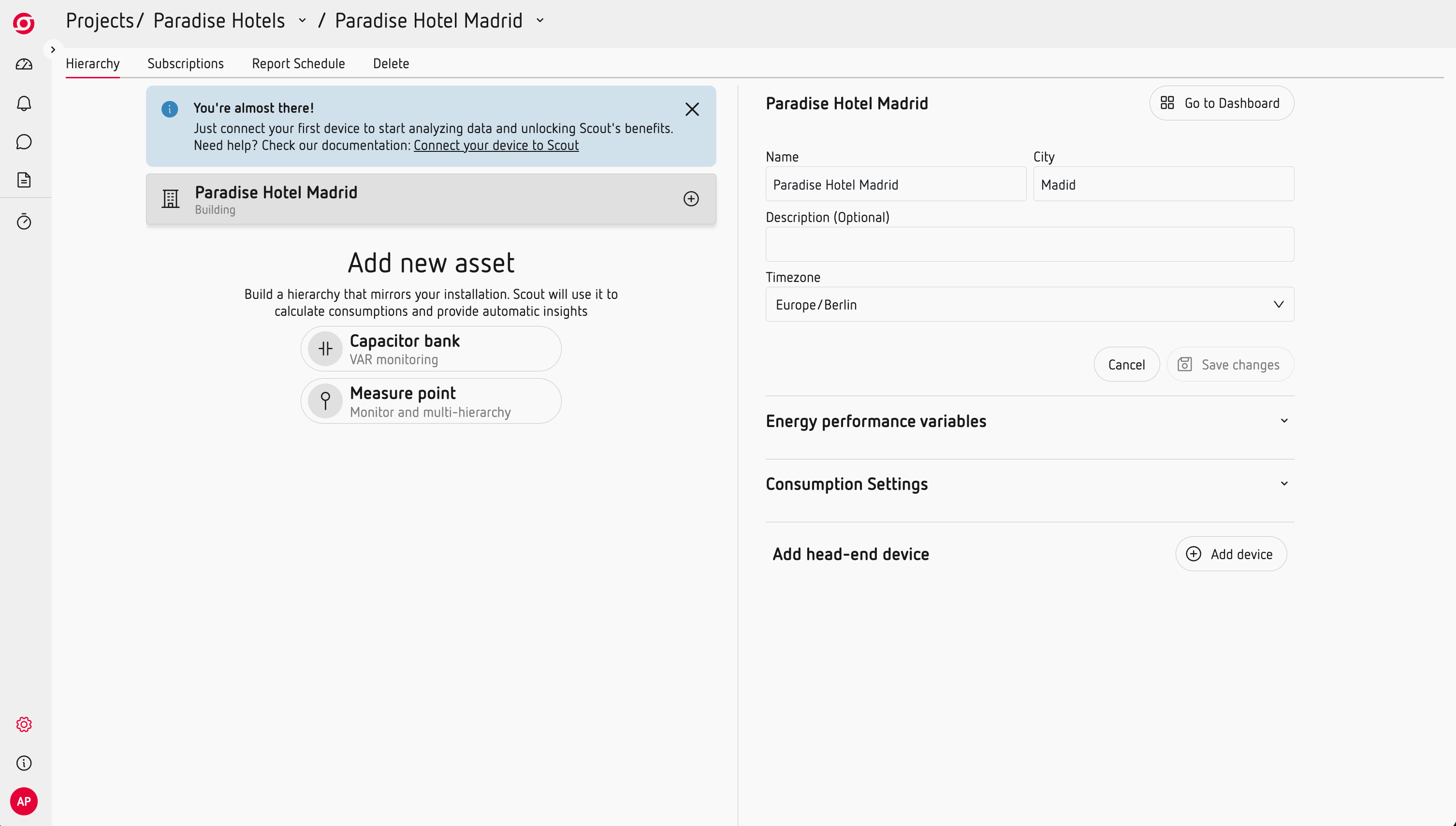
Link the device to the Asset
Select the Asset and choose Link device. Enter the device's ClaimID, which you will find in the device's web server or on its label.
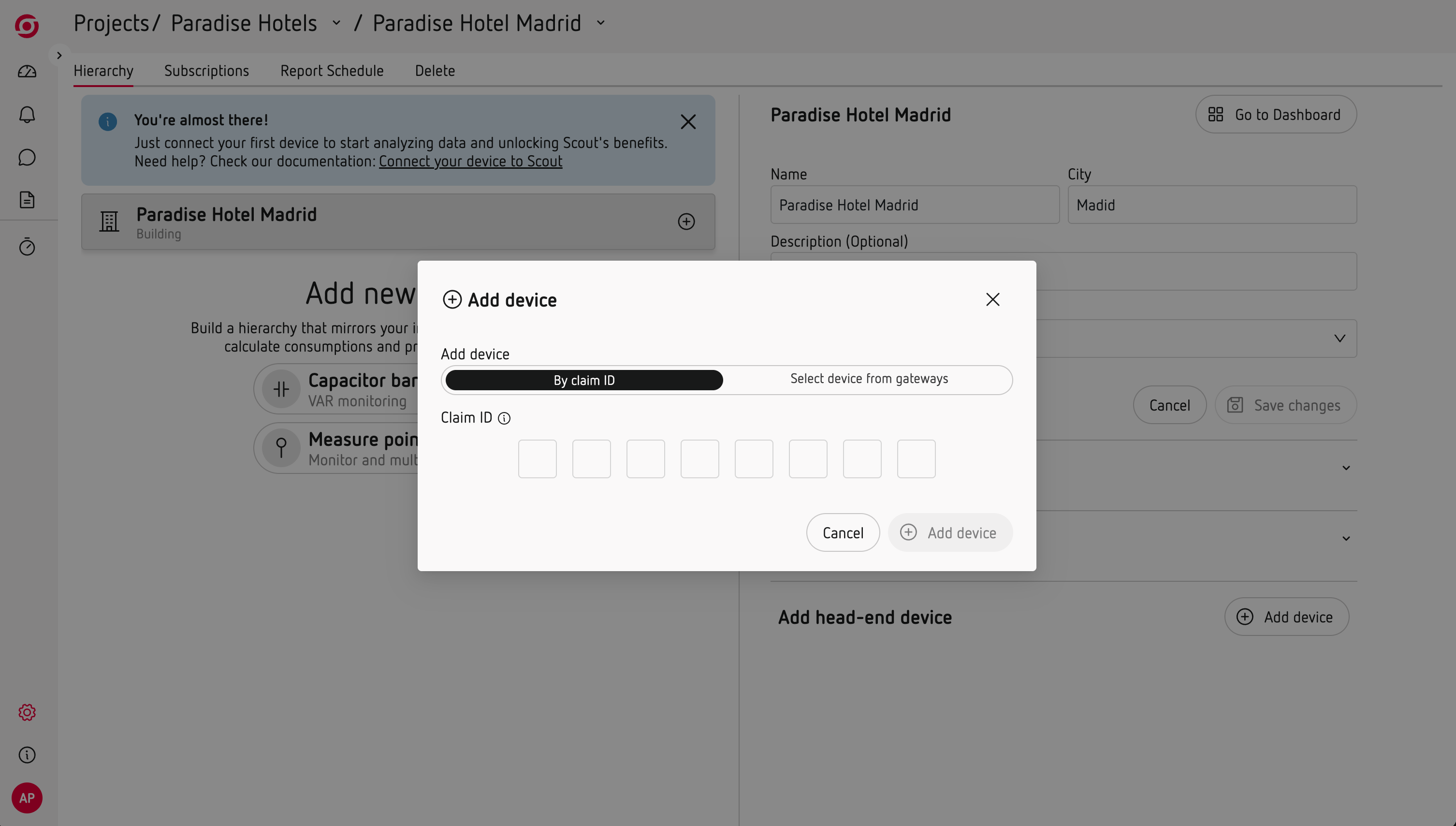
Once linked, the device provides the data for that Asset. An Asset does not need to have a linked device.
Multi-channel devices and Line EDS Cloud
If you are connecting a multi-channel device or a Line EDS Cloud, you first need to add it as a gateway.
Go to the Gateways tab of your project and add the device with its ClaimID, available in the device's web server under Settings > Scout.
Once the gateway has been added, go back to the Hierarchy of the corresponding Location and use Add by ID to select the channel or device you want to link to the Asset.
On multi-channel devices, each channel can be linked to a different Asset.
Note
You can link devices or channels to Assets in different Locations.
Devices with specific configuration
Some devices require additional steps to connect to Scout. Follow the specific instructions for your device before continuing with the connection process.
Wait for your data
You can check the connection status in the project hierarchy: a green indicator on the device means it is connected.
It may take a few minutes for data to appear in Scout.
Once your data is available, you can start using Scout.