Monitor your device status
Check your device connection status in Scout and quickly identify when an asset has stopped sending data.
Scout provides several ways to check whether your devices are communicating and whether their measurements are being received.
Check the status from the asset hierarchy
In the asset hierarchy, a thin vertical indicator shows the current data status of each asset.
- Green — the device is sending data normally.
- Yellow — the device has stopped sending measurements recently.
- Red — the device has not sent measurements for a longer period.
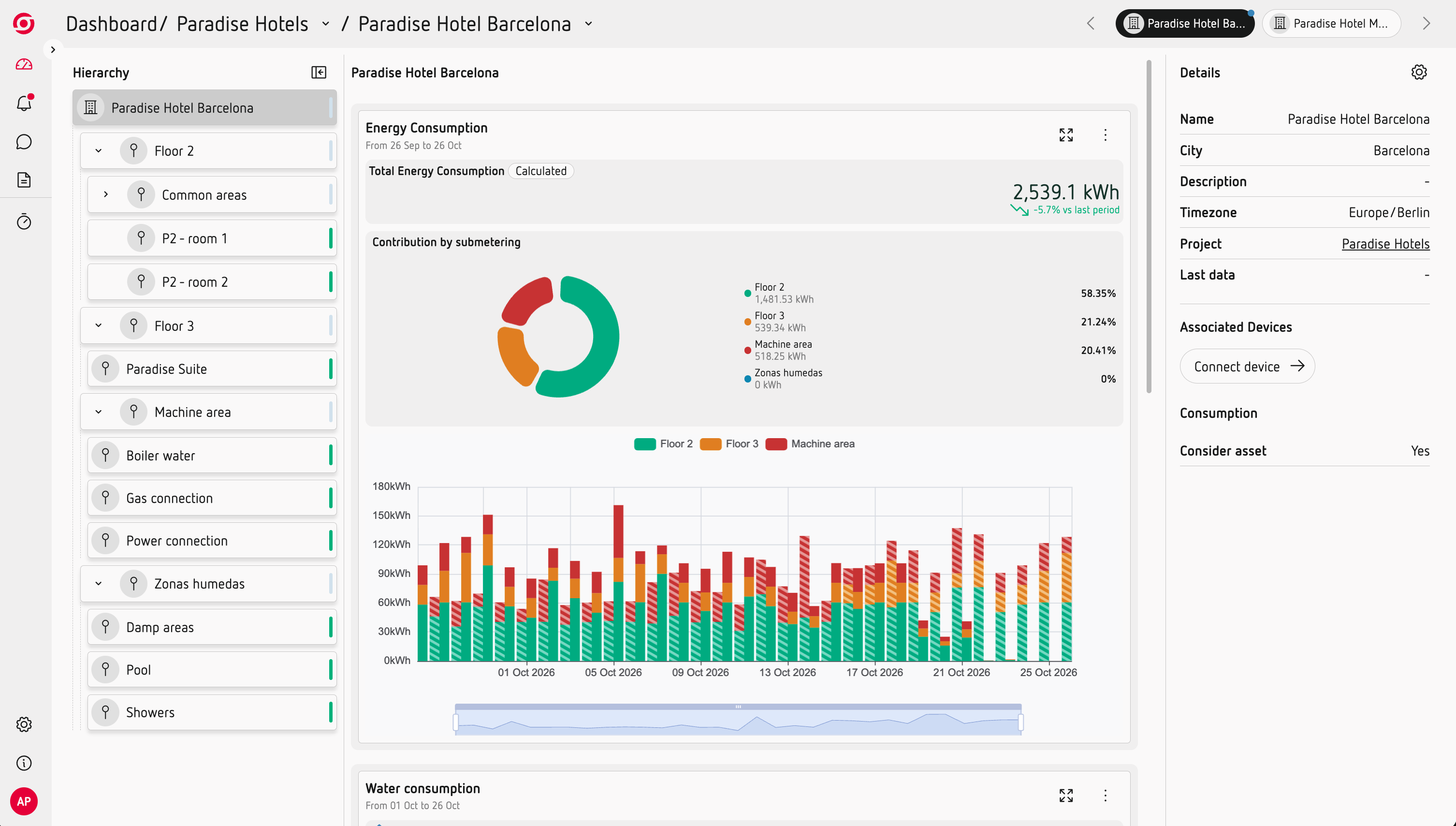
This gives you a quick overview of the communication status across your installation and helps you spot assets that may need attention.
Check the device itself
You can also check the connection status directly from the device's web server.
In the Scout section of the web server, the device indicates whether it is currently connected to Scout.
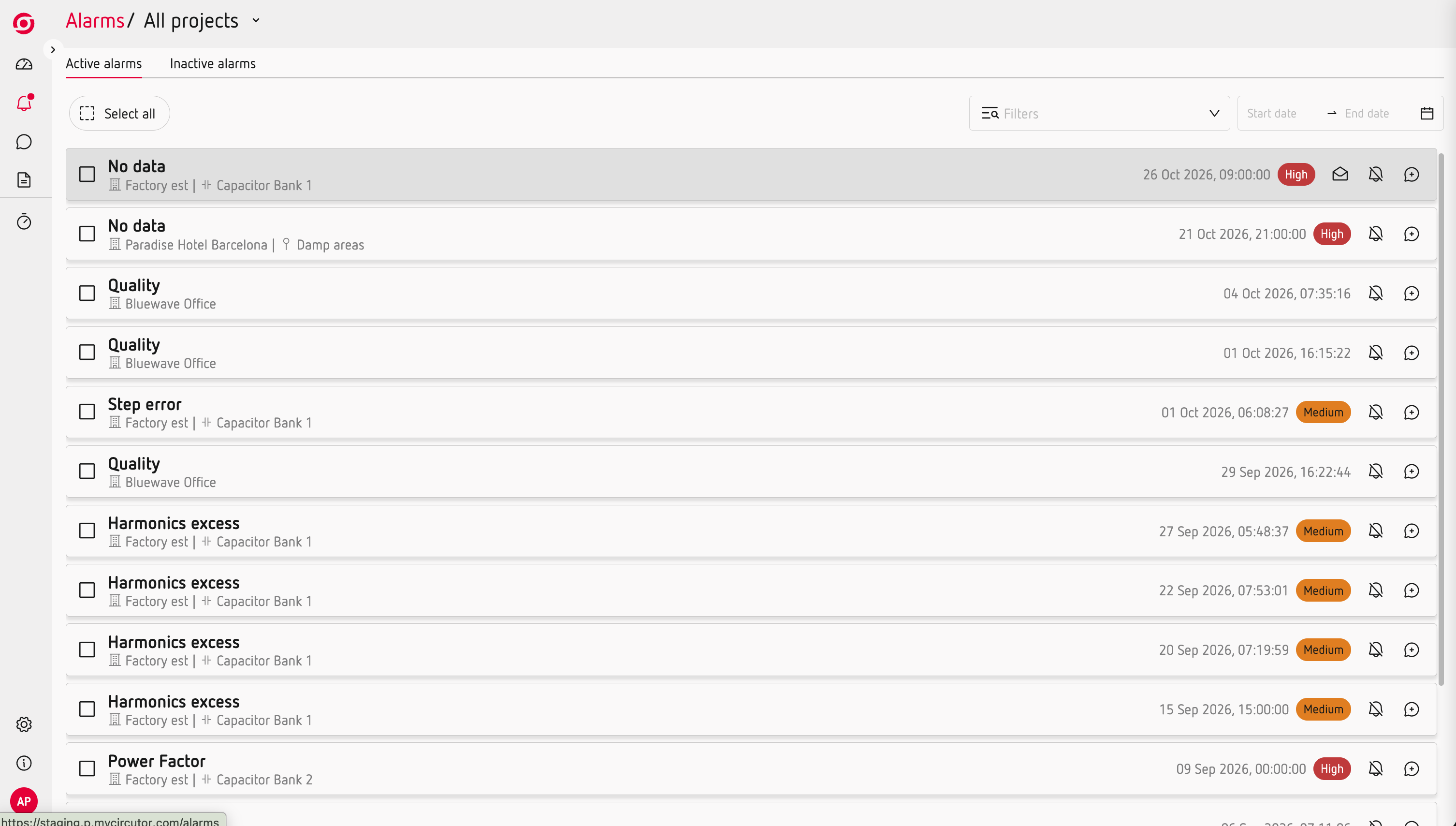
Check the Alarms section
When an asset stops receiving data, Scout also generates a No data alarm.
You can use the Alarms section to identify assets that are no longer sending measurements and investigate the issue.
Use these signals together
The three options are useful for different purposes:
- Asset hierarchy → Quickly spot communication problems across your installation.
- Device web server → Check the connection status of a specific device.
- Alarms → Identify and investigate assets that have stopped sending data.
If a device is not communicating, you can also use remote access to open its web server from Scout and investigate the issue without travelling to the installation.
Learn more: Access your devices remotely